

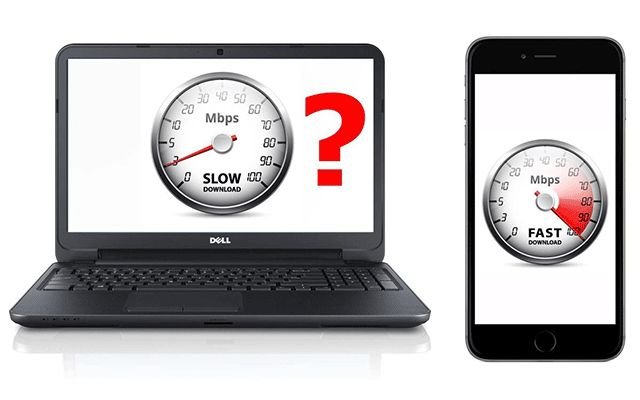

Introduction: A Deep Dive into the Frustration of Slow Internet Speed at Home
In today’s digital era, a fast and reliable internet connection has transformed from being a luxury to an essential utility. From remote work and online learning to streaming movies, gaming, and staying in touch with friends and family, almost every aspect of modern life relies on seamless connectivity. Yet, despite technological advancements, many households still struggle with slow internet speed. The frustration it brings is universal: a video that keeps buffering, a video call that drops at the worst moment, a webpage that takes forever to load. These interruptions, though seemingly small, can have a significant impact on productivity, entertainment, and overall quality of life.
Slow internet speed at home can be caused by a variety of factors, ranging from simple, fixable issues to more complex problems that may require professional assistance. In some cases, the problem may be as straightforward as an outdated router, poor Wi-Fi placement, or interference from other electronic devices. In other instances, the issue could lie with your Internet Service Provider (ISP), including throttling during peak hours, limited bandwidth, or outdated infrastructure. Even factors such as the number of devices connected to your network and the type of activities being performed simultaneously can dramatically affect internet performance.
Understanding the root causes of slow internet is the first step toward solving the problem. Diagnosing the issue requires a combination of observation, testing, and sometimes a bit of technical know-how. For example, checking your internet speed using an online speed test can help determine whether your connection is performing below the expected level. Identifying whether the slowdown occurs on specific devices or across your entire network can also provide valuable clues. Additionally, simple adjustments like moving your router to a more central location, switching to a less congested Wi-Fi channel, or upgrading outdated hardware can sometimes deliver immediate improvements.
However, not all solutions are simple. Home networks are increasingly complex, with multiple devices, smart home systems, and heavy data usage contributing to network congestion. In such cases, more advanced troubleshooting may be necessary. This could involve adjusting router settings, using range extenders or mesh networks, upgrading your plan with your ISP, or even replacing equipment to match modern connectivity demands. By systematically approaching each potential cause, homeowners can take control of their network performance rather than passively enduring slow speeds.
This guide aims to serve as a comprehensive resource for anyone struggling with slow internet speed at home. We will cover both common and uncommon factors that contribute to poor connectivity and provide actionable solutions that range from quick fixes to more advanced technical interventions. By following the steps outlined here, you can minimize interruptions, improve efficiency, and enjoy the full benefits of your internet connection. In an age where connectivity is critical, taking proactive measures to optimize your home network is not just a convenience—it’s a necessity.
Section 1: The Initial Assessment—Understanding Your Slow Internet Speed at Home
Before you can effectively address slow internet at home, it’s essential to understand the nature of the problem. Not every instance of lagging or buffering points directly to your Internet Service Provider (ISP); in many cases, the root cause lies closer to home. Slow internet can result from a variety of factors, including ISP limitations, Wi-Fi network issues, or device-specific problems, and sometimes a combination of all three.
The first step in the assessment process is identifying where the slowdown occurs. Conducting a simple speed test on multiple devices can provide valuable insight. If the test shows consistently slow speeds across all devices, the issue is likely with your ISP or your network hardware. Conversely, if only one device is affected, the problem may be specific to that device—such as outdated software, malware, or background applications consuming bandwidth.
Next, examine your Wi-Fi setup. Factors such as router placement, interference from other electronic devices, and the number of devices connected simultaneously can all impact speed. Routers placed in corners, behind furniture, or near microwaves and cordless phones may struggle to distribute signal evenly, leading to weak or inconsistent coverage in parts of your home. Similarly, homes with multiple users streaming, gaming, or downloading large files simultaneously may experience congestion that slows down the connection for everyone.
It’s also important to consider your ISP’s role. Some providers throttle speeds during peak hours, limit bandwidth on certain plans, or have network maintenance issues that temporarily reduce performance. Understanding whether your plan aligns with your household’s usage demands is crucial in diagnosing the problem.
By carefully assessing these factors—device performance, Wi-Fi configuration, and ISP limitations—you gain a clearer picture of the causes behind your slow internet. This initial evaluation is the foundation for implementing targeted solutions, ensuring that you address the real problem rather than just its symptoms.
1.1 The Importance of Speed Tests
The first step in diagnosing your slow internet speed at home is to perform a speed test. Use a reliable and independent speed test tool like Ookla’s Speedtest.net or Google’s own speed test. These tools measure your download speed (how quickly you can pull data from the internet), upload speed (how quickly you can send data), and latency (the time it takes for a signal to travel from your device to the server and back).
- Download Speed: Crucial for streaming, browsing, and downloading files.
- Upload Speed: Important for video calls, online gaming, and sending large files.
- Latency (Ping): A measure of responsiveness, critical for real-time applications.
Run these tests at different times of the day to get a more accurate picture of your network performance. Note the results and compare them to the speeds your ISP promises. If the numbers are significantly lower than what you’re paying for, it’s a strong indicator that the issue may lie with your ISP or the connection coming into your home.
1.2 Identifying the Scope of the Problem
Is the slow internet speed at home affecting all your devices or just one?
- One Device: If only one device is slow, the issue is likely with that device itself. It could be a software problem, a virus, or an outdated network card.
- All Devices: If every device is experiencing a slow internet speed at home, the problem is likely with your router, modem, or ISP.
Testing different devices (a smartphone, a laptop, a smart TV) can quickly help you narrow down the source of your frustration.
Section 2: The Easiest Fixes—Starting with the Basics
Sometimes, the solution to slow internet at home is far simpler than you might expect. Before diving into complex troubleshooting or calling your ISP, it’s worth trying these easy, often overlooked fixes. They can resolve many common connectivity issues quickly and effectively.
The first step is to restart your router and modem. While it sounds basic, power cycling your equipment can clear temporary glitches, refresh your connection, and improve overall speed. Simply unplug the devices, wait 30–60 seconds, and plug them back in. Many speed issues resolve themselves after this simple step.
Next, consider checking your Wi-Fi placement. Routers perform best when placed in a central, elevated location, away from walls, furniture, and electronic devices that may interfere with the signal. Avoid placing your router near microwaves, cordless phones, or large metal objects, as these can block or weaken your Wi-Fi coverage.
Another quick fix is reducing the number of connected devices. Every device on your network consumes bandwidth, even when idle. Streaming videos, online gaming, or large downloads from multiple devices simultaneously can easily slow your internet. Temporarily disconnect devices that aren’t in use to see if performance improves.
It’s also wise to update your router’s firmware. Manufacturers release updates to fix bugs, enhance security, and improve performance. Log into your router’s interface and ensure it’s running the latest firmware version.
Finally, check for background applications or downloads on your devices. Many apps, such as software updates, cloud backups, or file-sharing programs, can consume significant bandwidth without your knowledge. Closing unnecessary programs or scheduling heavy downloads for off-peak hours can free up your connection.
These simple actions—restarting equipment, optimizing placement, managing connected devices, updating firmware, and monitoring background usage—often solve slow internet issues without further intervention. Starting with these basic fixes ensures that you address the most common problems before moving on to more complex troubleshooting.
2.1 The Classic Router and Modem Reboot
This is the most common advice for a reason: it works. Unplug both your modem and your router from their power sources. Wait for about 30 seconds, and then plug the modem back in first. Wait for all its indicator lights to turn on and stabilize (this may take a minute or two). Then, plug your router back in and wait for it to fully boot up.
Why does this work? Restarting these devices clears their cache, resets their network connections, and can resolve temporary glitches that are causing your slow internet speed at home. Think of it as a fresh start for your entire network.
2.2 The Power of Proximity
Your physical location relative to the router can have a huge impact on your slow internet speed at home. Wi-Fi signals weaken over distance and are easily blocked by walls, floors, and large furniture.
- Move Closer: Try moving your device closer to the router.
- Optimal Placement: Ensure your router is in a central, open location in your home, away from other electronics that might cause interference, like microwaves, cordless phones, and Bluetooth devices.
2.3 Checking for Other Users and Devices
Is someone else in your home streaming a 4K movie or downloading a massive video game update? Network congestion is a primary cause of slow internet speed at home. Check to see if other devices are using up all the bandwidth. You can often see a list of connected devices in your router’s administrative interface.
2.4 Clearing Cache and Running a Malware Scan
A slow internet speed at home might not be an internet problem at all. A browser with a clogged cache or a computer infected with malware or a virus can perform sluggishly, giving the illusion of a slow connection.
- Clear Browser Cache: In your browser settings, clear your browsing history, cookies, and cache.
- Run a Scan: Use a reputable antivirus or anti-malware program to scan your device for threats.
Section 3: Diving Deeper—Troubleshooting Your Hardware and Network
Slow or unstable internet can often be traced back to hardware or network issues. To troubleshoot effectively, start with your hardware. Check that your modem and router are powered on and functioning correctly. Sometimes, simply restarting these devices can resolve connectivity problems. Inspect cables for damage or loose connections, as frayed or disconnected wires are a common culprit. For computers, ensure your network adapter drivers are up to date; outdated drivers can cause intermittent or slow connections.
Next, examine your network setup. Identify whether the issue is with your device or the network itself by connecting multiple devices. If only one device experiences problems, the fault likely lies with that device. If multiple devices struggle, your router, modem, or internet service provider (ISP) may be at fault. Use network diagnostic tools built into your operating system to check signal strength, IP configurations, and connectivity.
Wireless networks require extra attention. Wi-Fi signal interference from other devices or physical barriers like walls can weaken performance. Position your router centrally and away from electronic appliances to maximize coverage. For persistent issues, consider switching between 2.4 GHz and 5 GHz bands, depending on distance and device compatibility.
Finally, firmware updates for routers and modems are critical. Manufacturers often release updates to improve performance and security. If problems persist, contact your ISP to check for outages or account-related issues. Advanced troubleshooting might include resetting network settings, replacing faulty hardware, or consulting professional support.
By systematically checking hardware, network configurations, and environmental factors, you can quickly identify and resolve common connectivity problems. Taking these steps not only restores internet performance but also helps maintain the longevity and reliability of your devices.
3.1 A Closer Look at Your Wi-Fi Signal
Your wireless connection is a common bottleneck.
- Signal Strength: Use a Wi-Fi analyzer app on your smartphone to check the strength of your signal in different parts of your home. A weak signal will inevitably lead to a slow internet speed at home.
- Switching Bands: Most modern routers broadcast on two frequencies: 2.4 GHz and 5 GHz. The 2.4 GHz band has a wider range but is slower and more prone to interference. The 5 GHz band is faster but has a shorter range. Try connecting your device to the 5 GHz band for a speed boost, especially if you’re close to the router.
- Router Channels: Wi-Fi networks operate on different channels. If your neighbor’s router is on the same channel as yours, it can cause interference and a slow internet speed at home. Use a Wi-Fi analyzer to find a less crowded channel and change it in your router’s settings.
3.2 A Wired Connection Test
This is a critical diagnostic step. Connect your computer directly to the router with an Ethernet cable. Then, run another speed test. If your wired speeds are significantly faster than your Wi-Fi speeds, the problem is your Wi-Fi network, not your ISP. If the speeds are still slow, the problem is likely with your modem or the connection coming into your home. This test isolates the source of the slow internet speed at home to either your internal network or your external ISP connection.
3.3 Outdated Hardware: The Silent Killer
The lifespan of a router is typically 2-5 years. Just like any other piece of technology, it can become obsolete. If your router is old, it might not support the latest Wi-Fi standards (like Wi-Fi 6 or 6E) or have the processing power to handle the number of devices you have today. An old modem can also be a bottleneck. Check with your ISP to see if your modem is compatible with their latest technology. Upgrading your router and/or modem can be a significant step in resolving a slow internet speed at home.
3.4 Router Settings and Firmware Updates
Your router’s administrative page holds a wealth of options.
- Firmware: Router manufacturers regularly release firmware updates to improve performance, patch security vulnerabilities, and fix bugs. Make sure your router’s firmware is up to date. You can usually do this through the router’s admin page.
- Quality of Service (QoS): Many routers have a QoS setting that allows you to prioritize certain types of traffic (e.g., video streaming or gaming) over others. This can help prevent a slow internet speed at home for your most critical tasks.
Section 4: The ISP Factor—When to Call the Professionals

Sometimes, despite your best efforts, slow internet at home isn’t caused by your devices or network setup—it’s an issue with your Internet Service Provider (ISP). After thoroughly troubleshooting hardware, checking connections, and optimizing your Wi-Fi settings, persistent performance problems may indicate an external issue.
Start by confirming the problem isn’t localized. Test your connection on multiple devices. If all devices experience the same slow speeds, it’s likely beyond your home network. Next, run a speed test and compare the results to the speeds promised in your service plan. Consistently lower-than-expected speeds or frequent disconnections are strong indicators that your ISP may be the source.
Before calling, gather relevant information. Note the times slowdowns occur, record speed test results, and check for any recent service notices from your provider. This documentation helps customer support diagnose the issue faster and may reveal patterns such as peak-hour congestion.
When you contact your ISP, describe the problem clearly, including the troubleshooting steps you’ve already taken. Many ISPs can remotely check your connection, reset equipment, or even dispatch a technician if necessary. Be aware that some issues, like infrastructure limitations, local outages, or maintenance work, can only be resolved on their end.
In some cases, if slow speeds persist despite your provider’s interventions, it may be worth evaluating alternative ISPs that offer better coverage or faster speeds in your area. Keeping a proactive approach ensures you’re not paying for service that doesn’t meet your needs.
Ultimately, recognizing when the problem is outside your control saves time and frustration. While home troubleshooting is essential, knowing when to call the professionals can quickly restore reliable internet performance and get your devices running smoothly again.
4.1 Verifying Your ISP’s Performance
Before you call them, check for known outages in your area. Many ISPs have status pages or social media accounts that report service interruptions.
4.2 The Case for Upgrading Your Plan
Your current internet plan might simply not be fast enough for your needs. Consider the number of devices in your home, the number of users, and your usage habits. A family of four with multiple streamers, online gamers, and remote workers will require a much faster plan than a single person who only browses the web. A slow internet speed at home could be a simple case of an insufficient plan.
4.3 Negotiating with Your ISP
If you’ve done all the troubleshooting and the speed tests still show a slow internet speed at home compared to your plan, it’s time to contact your ISP. Be prepared with the data from your speed tests. They can perform remote diagnostics on their end, check the signal strength to your modem, and send a technician to your home if necessary. They may also be able to offer a new modem or a deal on an upgraded plan.
Section 5: The Advanced Fixes—A Guide for the Tech-Savvy
For users comfortable with technology, tackling persistent slow internet at home often requires going beyond basic troubleshooting. Advanced techniques can identify hidden issues and optimize your network for maximum performance.
One of the first steps is analyzing your network traffic. Tools like Wireshark or NetSpot allow you to monitor bandwidth usage and detect devices or applications consuming excessive resources. Identifying bandwidth hogs helps in prioritizing traffic, ensuring critical devices get the speed they need. Implementing Quality of Service (QoS) settings on your router can further optimize your network by prioritizing gaming, streaming, or work-related traffic.
Another advanced technique is adjusting DNS settings. Switching to faster, more reliable DNS servers—such as Google DNS or Cloudflare—can reduce latency and improve loading times for websites. Similarly, modifying your router’s channel settings can minimize interference from neighboring Wi-Fi networks, especially in densely populated areas. Tools like inSSIDer or NetSpot can help identify the least congested channels for your network.
For those with wired networks, upgrading to higher-quality Ethernet cables, such as Cat6 or Cat7, can reduce signal degradation and improve stability. Similarly, firmware updates for routers, modems, and network adapters are crucial. Manufacturers regularly release updates that fix bugs, enhance performance, and improve security.
Finally, consider network segmentation for larger homes. Using multiple access points or a mesh Wi-Fi system ensures even coverage and reduces congestion on a single router. This approach allows each device to maintain strong, consistent connections throughout your home.
While these techniques require more technical know-how, they often resolve stubborn connectivity issues that basic fixes cannot. By leveraging these advanced strategies, tech-savvy users can maximize network performance, minimize downtime, and enjoy a consistently fast and reliable internet experience at home.For users comfortable with technology, tackling persistent slow internet at home often requires going beyond basic troubleshooting. Advanced techniques can identify hidden issues and optimize your network for maximum performance.
One of the first steps is analyzing your network traffic. Tools like Wireshark or NetSpot allow you to monitor bandwidth usage and detect devices or applications consuming excessive resources. Identifying bandwidth hogs helps in prioritizing traffic, ensuring critical devices get the speed they need. Implementing Quality of Service (QoS) settings on your router can further optimize your network by prioritizing gaming, streaming, or work-related traffic.
Another advanced technique is adjusting DNS settings. Switching to faster, more reliable DNS servers—such as Google DNS or Cloudflare—can reduce latency and improve loading times for websites. Similarly, modifying your router’s channel settings can minimize interference from neighboring Wi-Fi networks, especially in densely populated areas. Tools like inSSIDer or NetSpot can help identify the least congested channels for your network.
For those with wired networks, upgrading to higher-quality Ethernet cables, such as Cat6 or Cat7, can reduce signal degradation and improve stability. Similarly, firmware updates for routers, modems, and network adapters are crucial. Manufacturers regularly release updates that fix bugs, enhance performance, and improve security.
Finally, consider network segmentation for larger homes. Using multiple access points or a mesh Wi-Fi system ensures even coverage and reduces congestion on a single router. This approach allows each device to maintain strong, consistent connections throughout your home.
While these techniques require more technical know-how, they often resolve stubborn connectivity issues that basic fixes cannot. By leveraging these advanced strategies, tech-savvy users can maximize network performance, minimize downtime, and enjoy a consistently fast and reliable internet experience at home.
5.1 The Mesh Wi-Fi Solution
For larger homes or multi-story residences, a single router can’t provide full coverage, leading to “dead zones” where a slow internet speed at home is unavoidable. A mesh Wi-Fi system uses multiple access points to create a single, seamless network that covers your entire home. The nodes communicate with each other to ensure a strong signal no matter where you are.
5.2 Changing Your DNS Server
Your Domain Name System (DNS) server is like a phone book for the internet, translating domain names (like https://www.google.com/search?q=google.com) into IP addresses. The default DNS server provided by your ISP might not be the fastest. You can switch to a public DNS server like Google’s (8.8.8.8 and 8.8.4.4) or Cloudflare’s (1.1.1.1). This can sometimes slightly improve your page loading times and reduce the feeling of a slow internet speed at home.
5.3 Troubleshooting with Your Operating System
Your computer’s network settings can also play a role.
- Network Drivers: Ensure your computer’s network card drivers are up to date. Outdated drivers can cause connection instability and contribute to a slow internet speed at home.
- Windows: Use the built-in network troubleshooter.
- Mac: Use Wireless Diagnostics to analyze your Wi-Fi environment.
Conclusion: Taking Charge of Your Home Network
A slow internet speed at home is not a problem you have to live with. By systematically troubleshooting your network, from the simplest router reboot to more advanced hardware checks and ISP communication, you can identify and resolve the root cause. This comprehensive guide has provided you with the tools and knowledge to take control, ensuring you have the fast, reliable connection you need for modern life. By following these steps, you can transform your frustratingly slow connection into a seamless and efficient digital experience.
