

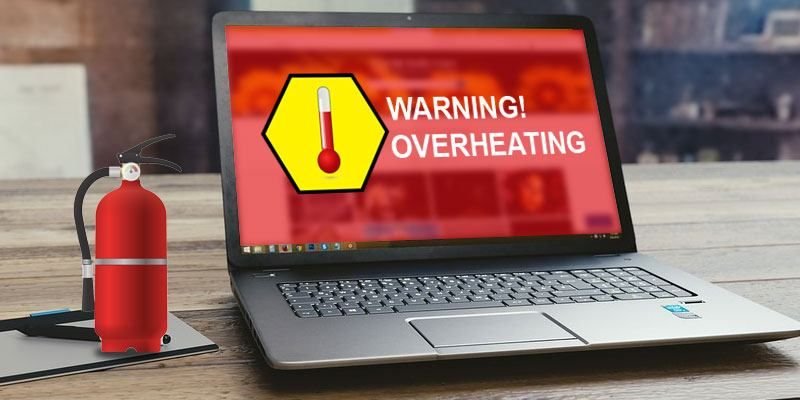
Understanding the Anatomy of Laptop Overheating
Before we can address the solutions, it’s crucial to understand the “why.” A laptop’s internal components—primarily the CPU (Central Processing Unit) and GPU (Graphics Processing Unit)—are responsible for executing countless tasks, from loading applications to rendering high-definition graphics. These components perform billions of calculations per second, and as a natural consequence of this heavy processing, they generate significant heat.
Under normal conditions, this heat is dissipated through an integrated cooling system, which is carefully engineered to maintain optimal internal temperatures. This system usually consists of one or more cooling fans, heat sinks, thermal paste, and air vents. Each element plays a vital role in managing heat levels:
- Fans circulate air, expelling hot air from inside the chassis and drawing in cooler air from the outside.
- Heat sinks, typically made from metals like copper or aluminum, absorb and disperse the heat from the CPU and GPU.
- Thermal paste is a heat-conductive compound applied between the chip and heat sink to ensure efficient heat transfer.
- Air vents provide the necessary pathways for airflow to move freely through the device.
However, when this system becomes inefficient or compromised, the heat generated can accumulate faster than it can be expelled. This results in a gradual or even sudden increase in internal temperature, which leads to laptop overheating.
Several factors can disrupt the normal functioning of the cooling system:
- Dust and Debris Buildup: Over time, dust particles can settle inside the laptop, especially around the fans and vents. This accumulation restricts airflow, causing heat to remain trapped within the system.
- Aging Thermal Paste: Thermal paste degrades over time, becoming dry or crusty. When this happens, the thermal conductivity between the CPU/GPU and the heat sink is reduced, leading to inefficient heat transfer.
- Blocked Vents: Using a laptop on a soft surface, like a bed or cushion, can block the air vents. When airflow is obstructed, even the most powerful fans can’t effectively cool the internal components.
- Faulty Fans: If a fan slows down, stops working, or produces grinding noises, it can no longer regulate temperature effectively. This alone can trigger rapid overheating.
- Heavy Workloads and Poor Thermal Design: Running multiple high-performance applications (such as gaming or video editing) on laptops not designed for such tasks can overwhelm the cooling system, especially in ultrathin models with limited ventilation.
- Environmental Conditions: High ambient temperatures in the room or direct sunlight exposure can worsen the situation, reducing the overall efficiency of the cooling system.
Understanding this internal anatomy of overheating is essential not only for solving the issue but also for preventing future damage. Overheating can reduce a laptop’s performance, cause unexpected shutdowns, and even result in long-term hardware damage. Recognizing the warning signs early—and knowing what causes the rise in internal temperature—is the first step toward keeping your laptop cool, healthy, and performing optimally.
Several factors contribute to this thermal buildup:
- Intensive Tasks: High-demand activities like gaming, video editing, or running multiple applications simultaneously push the CPU and GPU to their limits, generating more heat than usual.
- Poor Airflow: A laptop’s fans need a constant supply of cool air to function effectively. Using the laptop on a soft surface like a bed or a lap can block the air vents, trapping hot air inside.
- Dust and Debris: Over time, dust, pet hair, and other debris can accumulate inside the laptop, clogging the fans and heat sinks. This creates an insulating layer that prevents heat from escaping, directly contributing to laptop overheating.
- Failing Components: Worn-out fans, dried-out thermal paste, or a malfunctioning heat pipe can significantly impair the cooling system’s ability to dissipate heat.
The Surprising Link Between Storage and Laptop Overheating
While the CPU and GPU are widely recognized as the main heat producers in a laptop, many overlook the fact that the type and condition of your storage drive—whether a Hard Disk Drive (HDD) or a Solid-State Drive (SSD)—can also influence internal temperatures and contribute to overheating.
HDDs: Mechanical Heat Generators
Traditional HDDs consist of spinning magnetic disks and a mechanical read/write arm. These moving parts create friction and, in turn, heat—especially during prolonged or intensive data access tasks like file transfers, software installations, or running multiple applications from the drive. In older laptops or systems with poor ventilation, the heat generated by an overworked HDD can add to the overall thermal burden, pushing the internal temperature higher than safe thresholds.
Additionally, aging HDDs can become noisier and slower, requiring more effort (and heat) to function as their mechanical components degrade over time.
SSDs: Cooler, but Not Heat-Free
SSDs, on the other hand, have no moving parts and rely on flash memory, which makes them much faster and more energy-efficient than HDDs. While SSDs do generate some heat, it’s usually minimal and well within a laptop’s thermal management capabilities. However, in high-performance scenarios—such as gaming, video editing, or using NVMe SSDs in ultrathin laptops—even SSDs can get warm, especially if there’s insufficient cooling.
Drive Health Matters
A failing or overworked storage drive—whether HDD or SSD—can cause your system to work harder, drawing more power and indirectly increasing heat output. Monitoring drive health, updating firmware, and ensuring regular maintenance can help mitigate this risk and improve overall thermal efficiency.
Ultimately, storage drives, though often underestimated, play a subtle but important role in your laptop’s heat profile
Hard Disk Drives (HDDs): The Mechanical Heat Source
Traditional HDDs use spinning platters and a read/write head to store and retrieve data. These mechanical components are in constant motion, generating friction and, consequently, heat. The faster the platters spin (measured in RPMs), the more heat they produce. In older or heavily fragmented HDDs, the read/write head has to work harder, moving back and forth across the platters to locate data. This increased activity leads to higher temperatures. A failing HDD, which often makes clicking or grinding noises, is working inefficiently and can be a silent contributor to laptop overheating.
Solid-State Drives (SSDs): A Cooler Alternative with a Catch
SSDs, on the other hand, have no moving parts. They use flash memory to store data electronically. This fundamental difference means they generate significantly less heat than HDDs. Upgrading from an HDD to an SSD is one of the most effective ways to reduce your laptop’s internal temperature and combat laptop overheating.
However, even SSDs aren’t entirely immune to heat issues. High-performance NVMe SSDs, which transfer data at incredibly fast speeds, can get very hot, especially during large file transfers. Most modern laptops are designed to handle this, but in a poorly ventilated system, even a powerful SSD can contribute to the overall thermal load, which can lead to laptop overheating.
Symptoms and Risks of an Overheating Laptop
Recognizing the signs of laptop overheating is the first step toward a solution. Common symptoms include:
- Loud Fan Noise: Your laptop’s fans are working overtime to cool the system, resulting in a constant, high-pitched whir.
- Unusual Heat: The bottom and keyboard of your laptop feel uncomfortably hot to the touch, even during light use.
- Performance Throttling: The computer slows down dramatically, experiencing stuttering or freezing. This is the CPU and GPU “throttling” their performance to reduce heat generation, a built-in protective measure to prevent permanent damage.
- Sudden Shutdowns: The most severe symptom. The laptop’s thermal sensors detect a dangerously high temperature and shut the system down instantly to prevent component failure. This can be a sign of a serious laptop overheating problem.
- Visual Artifacts: In some cases, GPU overheating can lead to on-screen glitches, flickering, or strange colored lines.
The risks associated with laptop overheating are significant. Prolonged exposure to high temperatures can degrade and shorten the lifespan of crucial components like the battery, CPU, and GPU. In extreme cases, it can cause irreversible damage, such as a melted component on the motherboard, rendering the laptop unusable.
Effective Strategies to Combat Laptop Overheating
Now that we’ve identified the causes and symptoms, let’s explore practical and powerful solutions to prevent laptop overheating.
1. Improve Your Laptop’s Environment
One of the most effective yet often overlooked strategies to prevent laptop overheating is improving the environment in which the laptop operates. A laptop’s performance and temperature regulation are significantly influenced by its surroundings. Ensuring the device is used in an optimal setting can help maintain airflow, reduce internal heat buildup, and extend the overall lifespan of the hardware.
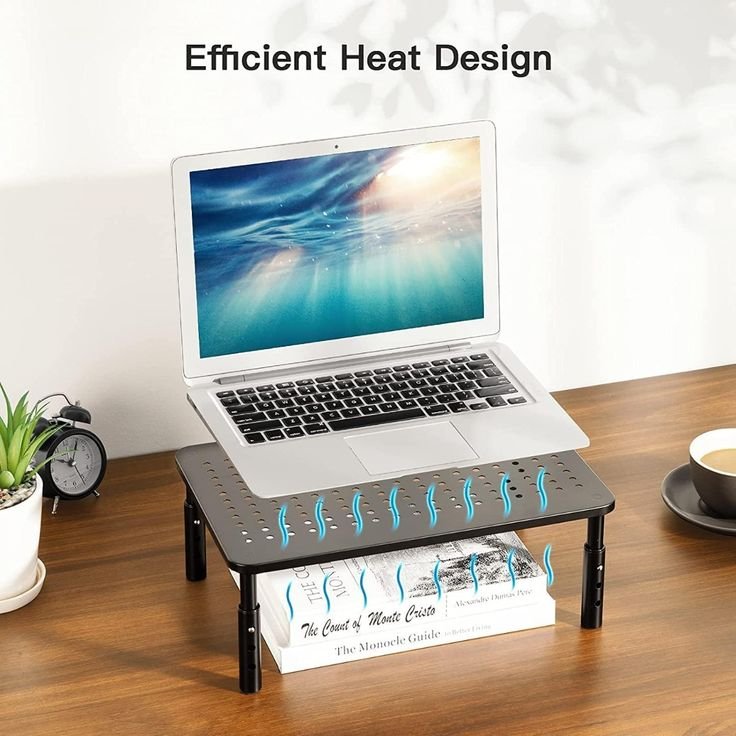
Firstly, always place your laptop on a hard, flat surface. Soft surfaces like beds, pillows, and couches can block the laptop’s air vents, preventing proper heat dissipation. When airflow is restricted, heat becomes trapped inside, causing the internal components—especially the CPU and GPU—to overheat. Using a laptop cooling pad or a stand with built-in fans can further enhance airflow and cooling efficiency.
Room temperature also plays a vital role. Using your laptop in a hot environment—especially under direct sunlight or in poorly ventilated areas—can cause it to heat up much faster. It’s best to operate your laptop in a cool, well-ventilated room to help the cooling system work more effectively.
Dust and debris in the environment can accumulate around or inside the laptop’s cooling vents, gradually reducing airflow. Regularly cleaning the vents and keeping the workspace dust-free will help maintain efficient heat dissipation.
Finally, avoid placing your laptop near heat sources like radiators or in enclosed spaces such as drawers or cramped desks. The more space and airflow the laptop has around it, the better it can cool itself.
In summary, improving your laptop’s environment involves maintaining a clean, cool, and ventilated workspace with plenty of room for air circulation. These small adjustments can greatly reduce overheating risks and keep your device running smoothly.
- Use on a Hard, Flat Surface: Always place your laptop on a desk or a dedicated laptop stand. This ensures that the air vents are unobstructed, allowing for proper airflow.
- Consider a Cooling Pad: A laptop cooling pad, with its built-in fans, is an excellent accessory for anyone who uses their laptop for intensive tasks. It provides a constant stream of cool air to the underside of the laptop, actively helping to combat laptop overheating.
- Keep it Clean: Regularly dust your workspace. Dust and debris can accumulate on your laptop’s exterior vents, restricting airflow.
2. Hardware Maintenance is Key
When it comes to preventing laptop overheating, proper hardware maintenance plays a critical role. Over time, laptops naturally accumulate dust, lint, and other debris inside the cooling system. This buildup can clog vents, block fans, and reduce the effectiveness of heat dissipation—leading to rising internal temperatures and eventually thermal throttling or system shutdowns.
One of the most important steps in hardware maintenance is regularly cleaning the cooling vents and fans. You can use compressed air to blow out dust from the air intake and exhaust vents without opening the laptop. For deeper cleaning, especially if you’re tech-savvy or have professional help, carefully opening the laptop and cleaning the fan blades and heat sinks can significantly improve airflow and cooling efficiency.
Another essential aspect is replacing thermal paste. Thermal paste is applied between the CPU/GPU and the heat sink to improve heat transfer. Over time, this paste can dry out or degrade, reducing its effectiveness. Reapplying high-quality thermal paste can restore proper thermal conductivity and reduce overheating.
It’s also important to inspect hardware components like fans and internal wiring. If a fan is noisy, sluggish, or not spinning at all, it might need repair or replacement. Cooling pads and external USB-powered fans can serve as additional support, but they are not a substitute for proper internal cooling.
Keeping your laptop’s hardware in good condition doesn’t require daily effort—just periodic attention. Even simple practices, like avoiding exposure to extreme temperatures and using your laptop in dust-free environments, can prolong the health of your device.
In short, hardware maintenance is a foundational step in managing laptop temperature. When done regularly and correctly, it ensures your laptop operates efficiently and safely, even during heavy use.
- Clean the Internal Fans and Vents: With the laptop turned off and unplugged, use a can of compressed air to blow dust out of the vents. For more severe blockages, you may need to open the laptop’s case carefully. If you’re not comfortable with this, a professional can perform a thorough internal cleaning.
- Reapply Thermal Paste: The thermal paste between the CPU/GPU and the heat sink can dry out over time, reducing its effectiveness. Replacing this paste is an advanced but highly effective way to improve thermal transfer and solve a laptop overheating problem. This is a task best left to an experienced technician.
3. Software and Performance Optimization

While hardware plays a key role in managing heat, software optimization is equally essential in preventing laptop overheating. When your system is overloaded with unnecessary background processes, outdated drivers, or poorly optimized applications, it forces the CPU and GPU to work harder—generating excess heat.
The first step is to monitor resource usage. Tools like Windows Task Manager or third-party software such as HWMonitor or MSI Afterburner allow you to track CPU, GPU, and RAM usage in real-time. Identifying and disabling high-resource background applications can ease pressure on your system and reduce thermal output.
Next, disable startup programs that aren’t essential. Many applications automatically launch at startup, consuming resources from the get-go. Using tools like the Startup tab in Task Manager (Windows) or Login Items on macOS can help you manage which programs run automatically.
Updating device drivers, especially for the CPU, GPU, and chipset, ensures that your hardware functions efficiently. Outdated drivers can lead to software-hardware miscommunication, causing excessive heat generation due to inefficient processing.
Operating system updates are also critical. OS patches often include performance improvements and thermal management updates, particularly for laptops with advanced fan control profiles.
Furthermore, you can adjust power settings to optimize performance based on usage. Switching to “Power Saver” or “Balanced” modes under Power Options in Windows reduces processor speeds during light use, conserving energy and minimizing heat.
Lastly, use lightweight software alternatives when possible. Heavy applications can unnecessarily tax system resources. Switching to efficient programs for tasks like browsing, editing, or media playback can reduce system load and improve thermal performance.
By optimizing software and system performance, you reduce the workload on internal components, leading to lower operating temperatures and a more efficient, longer-lasting laptop.
- Close Unnecessary Programs: The fewer programs you have running in the background, the less strain on the CPU and RAM, and the less heat generated. Use Task Manager (Windows) or Activity Monitor (macOS) to identify and close resource-hogging applications.
- Update Your Drivers and Operating System: Manufacturers often release software and driver updates that include performance optimizations and better thermal management.
- Monitor Your Temperatures: Use a third-party software like HWMonitor or Core Temp to keep an eye on your CPU and GPU temperatures. Knowing your laptop’s normal temperature range can help you spot potential problems before they lead to severe laptop overheating. A healthy idle temperature is typically between 30-50°C (86-122°F), while a load temperature should ideally not exceed 80-90°C (176-194°F).
The Power of Upgrades: A Long-Term Solution to Laptop Overheating
If you’re still struggling with laptop overheating despite implementing the above strategies, a hardware upgrade might be the ultimate solution.
The SSD Upgrade: A Game-Changer
As discussed earlier, an upgrade from a traditional HDD to an SSD is a significant step toward solving laptop overheating. Not only will it reduce heat generation, but it will also dramatically improve your laptop’s boot times, application loading speeds, and overall responsiveness. This one upgrade can transform an old, sluggish machine into a fast and cool-running device.
RAM Upgrades and Their Indirect Effect
While RAM itself doesn’t generate a lot of heat, having sufficient RAM for your tasks reduces the need for “virtual memory” (using the hard drive as a temporary substitute for RAM). The less your storage drive has to work, the less heat it generates, further preventing laptop overheating.
Understanding the “Why”: A Deeper Look at Thermal Management
The principles of thermal management are rooted in physics. Heat is a form of energy, and in a laptop, it must be transferred from the hot components to a cooler environment. This process is governed by the laws of thermodynamics. The heat sinks absorb the heat from the CPU and GPU, and the fans then blow that heat away, out of the laptop’s chassis. When any part of this chain is compromised—whether by dust, a failing fan, or a poor thermal interface—the result is an increase in internal temperature and the dreaded problem of laptop overheating.
By understanding these principles, you can take a more proactive approach to your laptop’s health. It’s not just about a noisy fan; it’s about a system in distress, and a proactive approach can save you time, money, and the frustration of a failed machine.
Final Thoughts: Preventing and Solving Laptop Overheating
The problem of a laptop overheating is a complex one, but it is far from insurmountable. By combining good habits, regular maintenance, and smart hardware choices, you can ensure your laptop remains a reliable and efficient tool for work, creativity, and entertainment.
Remember, the relationship between your laptop’s storage and its temperature is a direct one. A cool-running storage drive contributes to a cool-running laptop. By understanding this connection, you are empowered to make informed decisions that will extend the life of your device and provide a better, more stable computing experience. Don’t let a hot laptop slow you down—take control of your thermal management today.
Related Post:10 Powerful Ways to Fix Slow Computer Performance Fast
